| Recent Comments |
| Categories |
| Archives |
| Tags |
Vienna Ensemble Pro 8
I will be using Vienna Ensemble Pro 8 (VEP) on my studio computer as a central hosting environment for my virtual instruments (e.g., East West, BBCSO, HALion, Kontakt Komplete), allowing both Dorico and Cubase to connect to the same instrument instances, and as a means to integrate Dorico and Cubase. Instead of each application loading its own sample libraries, Dorico and Cubase will be connected via MIDI data to VEP to handle playback to returns to DOrico or Cubase. More specifically, in my setup Dorico will send MIDI to Cubase, which connects to VEP resulting in a very efficient workflow. To enable communication, Bome Network is used to create virtual MIDI ports. I describe my setup in detail below.
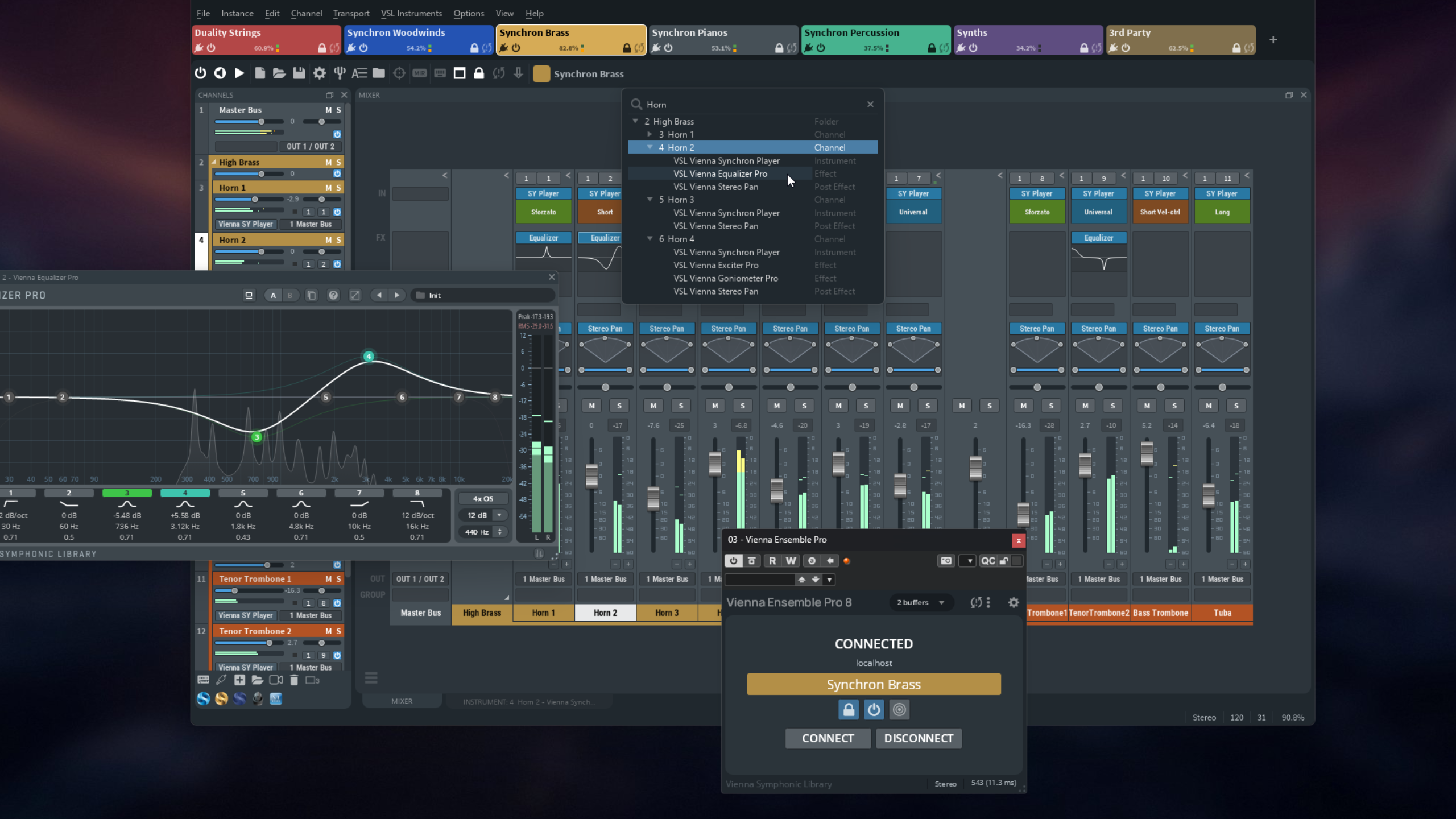 The interface of Vienna Ensemble Pro 8
| General |
Vienna Ensemble Pro 8 (VEP) is a professional host application designed to connect virtual instruments (VSTi), effects, and audio workflows across one or multiple computers into a single integrated system. VEP is used in music production, film scoring, and orchestral template building, where large numbers of sample libraries and plug-ins must be managed efficiently. At its core, the software acts as a cross-platform MIDI and audio networking solution, allowing to run plug-ins on different machines while controlling everything from a central DAW such as Cubase. This reduces CPU load on the main computer and enables much larger and more complex projects. However, in my workflow I use it on mysingle studio computer.
- One of its key functionalities is the ability to host VST3/VSTi plug-ins, making it compatible with all major virtual instruments and effects. This flexibility allows composers to integrate diverse libraries into a unified workflow.
- VEP supports extensive routing capabilities, including dozens of MIDI ports and hundreds of audio channels per instance, which is essential for large orchestral templates.
- Performance optimization is a central focus, with faster loading times achieved through intelligent plug-in reuse, meaning previously loaded instruments do not need to be reloaded from scratch. The plug-in pooling system further enhances workflow by reusing active plug-ins across projects, significantly reducing waiting times.
- Another important feature is instance preservation, which allows users to disconnect and reconnect their DAW without unloading samples, maintaining a stable working environment. Crash protection mechanisms are built in to isolate faulty plug-ins, preventing them from crashing the entire project and allowing selective disabling during loading. VEP includes an activity monitor that provides detailed insight into CPU usage, latency, and performance bottlenecks across instances and plug-ins.
- Channel Sets are a powerful addition, enabling users to load entire instrument sections or custom configurations instantly, which greatly speeds up template creation.
- Group Edit functionality allows synchronized editing of multiple instrument instances, making it easier to manage large orchestral setups with consistent settings. Copy and paste functionality across instances further streamlines workflow by allowing mixer settings, controller mappings, and tuning configurations to be shared quickly.
- Integrated effects are included directly within the mixer, providing high-quality processing such as EQ, compression, and reverb.
- Automation mapping has been improved, making it easier to control parameters from the DAW with clear and organized naming of automatable controls.
- The software supports surround mixing formats, allowing users to work in stereo as well as multi-channel configurations for film and immersive audio projects. Audio input routing enables Vienna Ensemble Pro to function as an external effects rack, processing audio from the DAW in real time on local or remote machines.
- VEP has the ability to disable or freeze channels, which unloads plug-ins and frees memory while preserving settings for later use.
- Latency compensation ensures that all plug-ins remain synchronized, even in complex signal chains involving multiple machines.
- VEP can run either as a standalone application or as a plug-in within a DAW, offering flexible integration into different production environments.
| Overall Setup |
| Acknowledgements |
My configuration, described below, is inspired by the workflow and Toolkit of Music Chef, which he explains in the three videos below. He provided a Dorico, Cubase, and Vienna Ensemble Pro template, and a Bome configuration file (i.e., the Toolkit). I used and modified this toolkit according to my own workflow and preferences. Note that the Bome Network INI configuration file (for defining virtual midi ports) in the Toolkit had a different name on my Windows 11 system and, therefore, was initially not detected by Bome Network. In the end, I did not use the provided configuration but defined a new set of virtual midi ports and routings to fit my setup. I can also highly recommend his Udemy course Dorico Expression Maps: Create Smarter, Flexible Templates.
In addition to the Music Chef Toolkit, I also used the BBCSO expression maps for Dorico that are provided on the Dorico blog page, and the Art Conductor Dorico expression maps for the East West Hollywood Orchestra. Finally, I also used the Opus Hollywood Orchestra instrument presets (Key Switched instruments) from Art Conductor.
I will provide my setting files and templates as a zip file at the end of this post (VEP-Toolkit_SkippyStudio.zip).
| Configuration |
The overall MIDI and audio routing is illustrated in the next figure. In Dorico, an orchestral template is configured with a large number of players (e.g., piccolo, flute, violin, trumpet, snare). Each player is assigned to a MIDI instrument; however, in this setup, these are not virtual instruments but virtual MIDI ports (Src) created via Bome Network.
For each orchestral section (e.g., woodwinds, brass, percussion, strings), a dedicated MIDI routing is defined from a source (Src) MIDI input to a destination (Dst) MIDI output. Additionally, a VST instrument is instantiated to host the TXL Timecode plugin, enabling synchronization between Dorico and Cubase via MIDI Time Code (MTC).
Within Cubase, MIDI tracks are created for each Dorico player. These tracks receive MIDI data from the corresponding destination (Dst) ports. Each MIDI track is then routed to an Instrument track hosting the Vienna Ensemble Pro (VEP) plugin. The plugin forwards MIDI data via specific MIDI ports to VEP, where the appropriate instrument (e.g., BBC Symphony Orchestra violins) is triggered. The resulting audio is then returned to Cubase through the same VEP plugin.
Importantly, MIDI communication between Cubase and VEP is handled via separate MIDI ports rather than distinct MIDI channels.
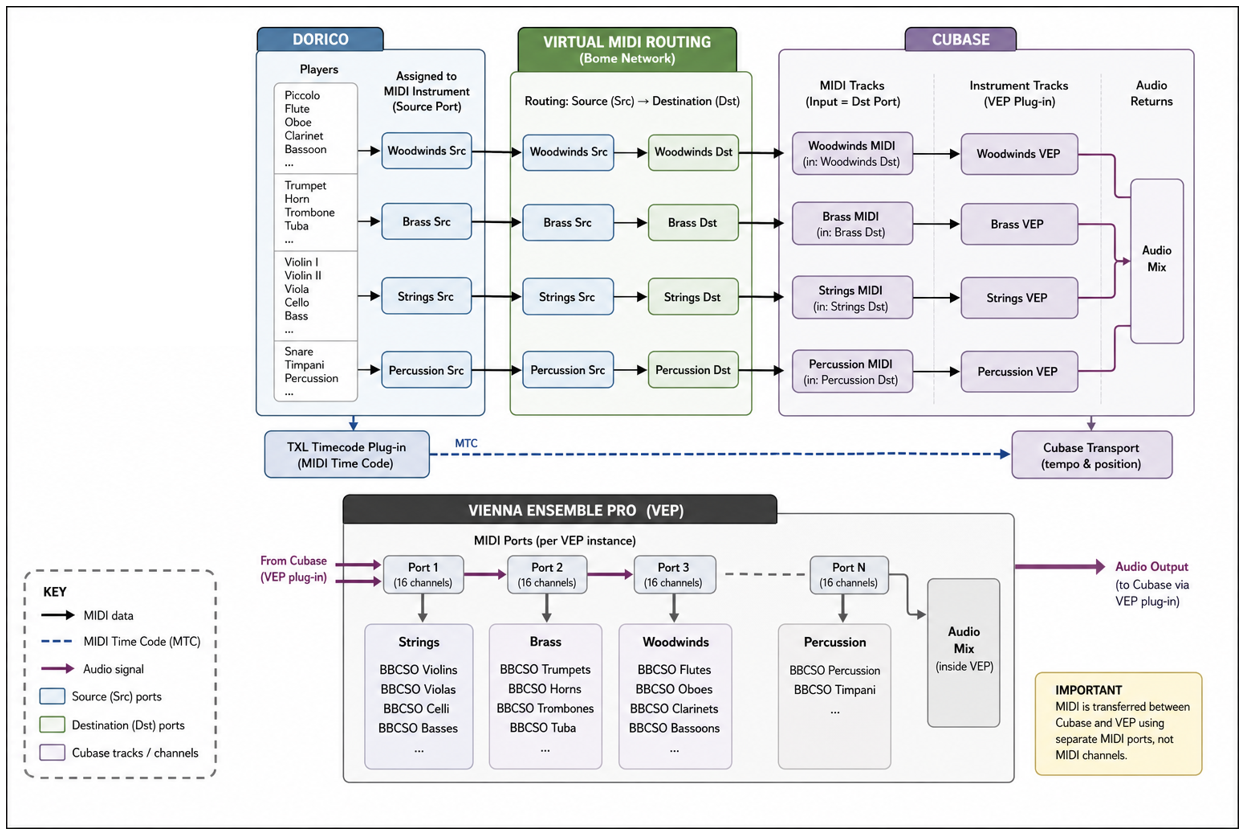
Overall MIDI and audio routing between Dorico, virtual MIDI ports, Cubase, and Vienna Ensemble Pro. Dorico players are each assigned to virtual MIDI source (Src) ports created via Bome Network. For each orchestral section (e.g., woodwinds, brass, strings, percussion), MIDI data is routed from a dedicated source (Src) port to a corresponding destination (Dst) port, forming independent data pipelines. In Cubase, MIDI tracks receive input from these Dst ports and are routed to instrument tracks hosting the Vienna Ensemble Pro (VEP) plug-in. Within VEP, MIDI is distributed across multiple ports (each supporting up to 16 channels) to address individual instruments (e.g., BBC Symphony Orchestra sections), thereby extending beyond the standard 16-channel MIDI limitation. Audio generated in VEP is returned to Cubase via the plug-in and mixed within the DAW. Synchronization between Dorico and Cubase is achieved using MIDI Time Code (MTC) via the TXL Timecode plug-in. Importantly, MIDI communication between Cubase and VEP is organized by separate MIDI ports rather than by MIDI channels.
| (1) Setup Vienna Ensemble Pro (VEP) |
Currently, I have setup 12 Instances comprising Woodwind, Brass, String, (tuned) Percussion, Keys, and Choir. For several sections (e.g., woodwinds, brass, and strings) and made separate instances for BBCSO or East West Instruments to quickly switch between the libraries I want to use in a specific project. Some instances comprise a mixture of BBCSO, East West, Kontakt, and Arturia instruments.
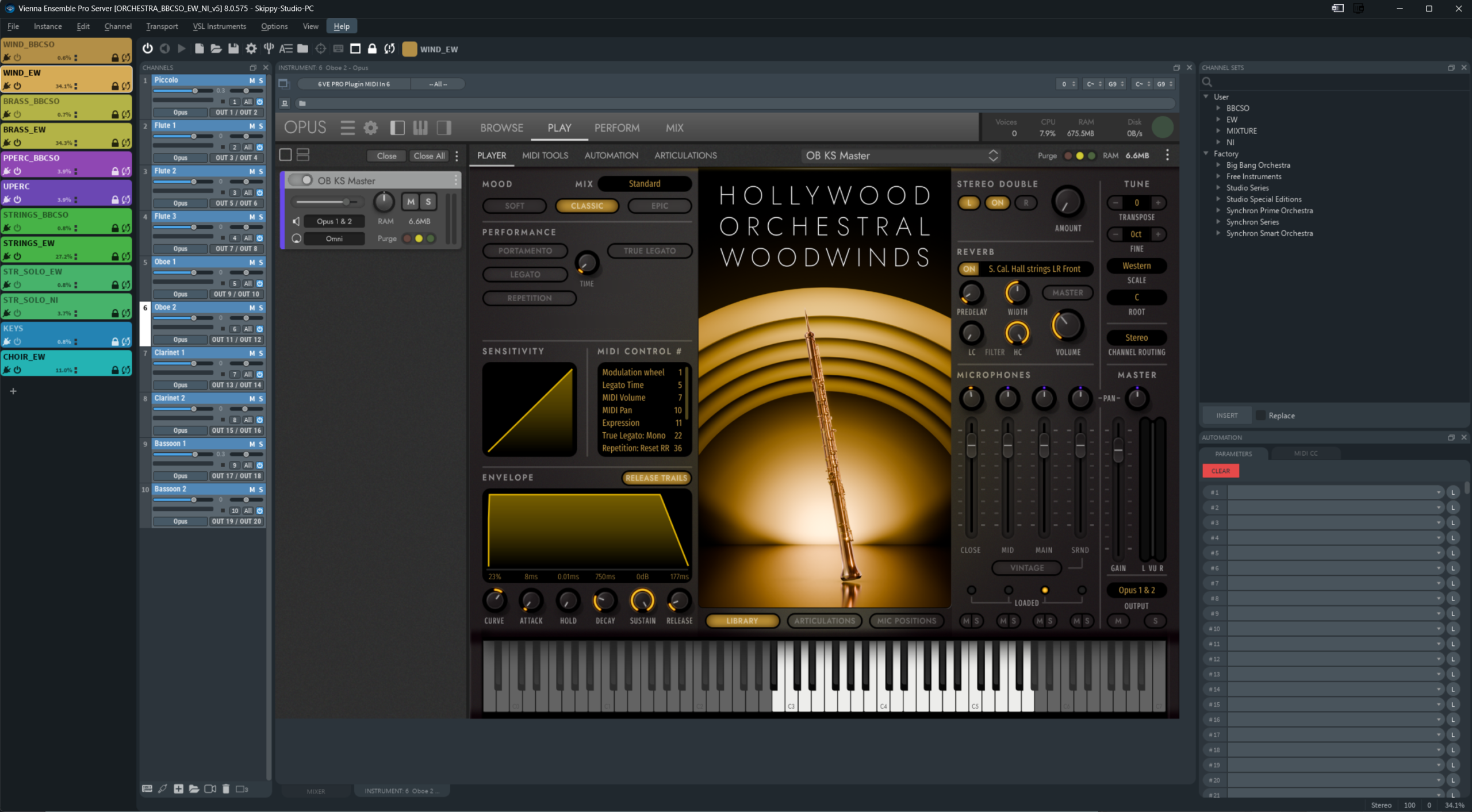
Vienna Ensemble Pro 8 showing 12 Instances each with a collection of VST Instruments (left panel). The East West Oboe 2 instrument in the WIND_EW instance is shown. Each instrument has its own output (i.e., OUT1/OUT2, OUT3/OUT4, etc) forwarded to Cubase, and own MIDI input port (i.e., 1 to 10). The MIDI channel is set to ‘All’ and the OPUS instruments set to OMNI.
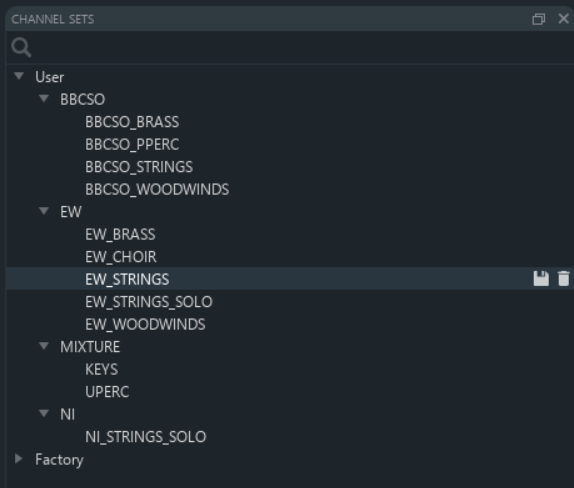
I separately save each of the VEP Instances (containing multiple instruments) as a ‘Channel Set’. This allows to easily setup new VEP server projects with different/fewer combinations of Instances.
Notes
- The MIDI input for all East West OPUS and Kontakt instruments should be set to OMNI, for BBCSO to ‘Any’, and for Arturia to ‘All’, such that in Cubase I can send MIDI data to VEP over all or ‘any’ MIDI channels.
-
Every instrument within an instance is assigned a unique MIDI port but to receives on ‘All’ MIDI Channels.
-
A MIDI port can be thought of as a physical or virtual connection between devices or software. When using tools such as loopMIDI or Bome MIDI Translator Pro, each created port functions as an independent pipeline: MIDI data sent to one port does not automatically appear on another port unless explicitly routed.
-
In Vienna Ensemble Pro (VEP), you can configure how many MIDI ports are available per instance. These ports are then exposed inside Cubase through the VEP plugin, allowing you to address multiple instruments via separate MIDI ports (rather than relying only on MIDI channels). Each VEP instance can expose multiple MIDI ports, each supporting up to 16 MIDI channels, effectively expanding the number of addressable instruments beyond the standard 16-channel MIDI limitation.
-
A MIDI channel, on the other hand, exists inside a single MIDI port. Each port can carry up to 16 separate channels. These channels could also be used to distinguish between different instruments, which is not what I did.
-
| (2) Setup Bome Network |
- I use Bome Network with an unlimited number of MIDI ports.
- Create Virtual MIDI Ports (e.g., BRASS (Src) and BRASS (Dest)) and MIDI Routings (e.g., ‘IN: BRASS (Src) Virtual In –> OUT: BRASS (Dest) Virtual Out’
- ‘Src’ (Source) is used by Dorico to send MIDI to Cubase.
- ‘Dest’ (Destination) is used by Cubase to receive MIDI from Dorico
- I have created a virtual port and a routing for every Instance (collection of instruments) in VEP. In addition, I created ports and a routing for a MIDI click: Click (Src) –> Click (Dest)
- Notes
- The the original Music Chef Toolkit creates a virtual MIDI port for each instrument instead of a family of instruments as I do in my case. The original configuration provides an additional layer of flexibility but at the expense of using many more virtual MIDI ports.
- Having many virtual MIDI ports on my system resulted in audio crackles, which I thought was caused by Bome Network. However, I think this was caused by my virus scanner. See my post about this [here].
- The advantage of my approach is that I can very easily create an EndPoint for Brass, Woodwinds, Strings, etc from a full project containing all instruments since all instruments are contained in the e.g., BRASS (Src) MIDI Instrument.
- The Virtual MIDI ports are not used by VEP, only by Dorico and Cubase.
- If Bome is not started then the MIDI ports and routings are still visible in the Windows Device Manager. However, it seems that Bome must be started in order for Dorico and Cubase to communicate.
- In Windows, the Bome configuration is written to an INI file: %AppData%\Roaming\Bome\BomeNet.bmts
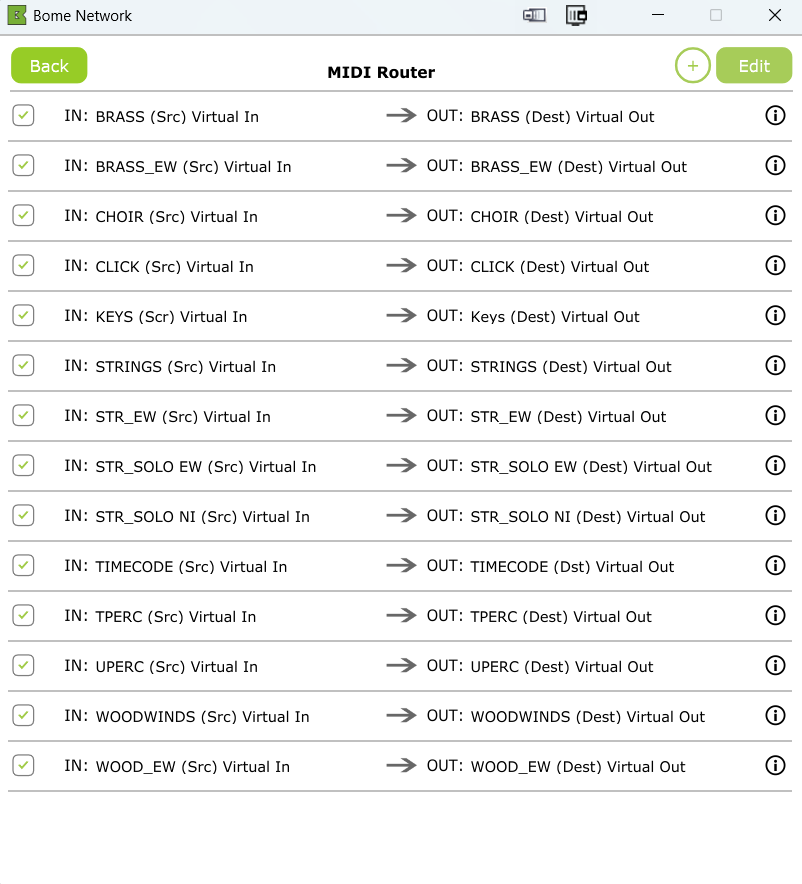
Routing of source (SRC) to destination (DEST) virtual MIDI ports for every VEP Instance in Bome Network.
| (3) Setup Dorico |
- I use Dorico Pro 6.2.
- Make sure that all Bome Virtual MIDI ports are disabled in Dorico to prevent a MIDI feedback loop (and a crash). You can disable these ports in Preferences –> Play.
- I have made an orchestral template with (Section) Players divided in the following groups:
- Woodwind (BBCSO)
- Woodwind (EW)
- BRASS (BBCSO)
- BRASS (EW)
- TUNED PERCUSSSION (BBCSO)
- KEYS
- PERCUSSION
- STRINGS SOLO
- STRINGS SOLO (BBCSO)
- STRINGS (EW)
- CHOIR (EW)
- CLICK
- All instruments are Single Players except for the Violin I/II, Viola, Violoncello, Double Bass, and Choir Men/Women, which are Section Players.
- Several groups are redundant (e.g., Woodwind (BBCSO) and Woodwind (EW)) to allow me to connect to either the BBCSO or East West instruments (or both). Other groups are a mixture of instruments (BBCSO, EastWest, Kontakt, Arturia).
- I can remove/hide the Players/Instruments that I don’t use
- I created three layouts to easily switch between all Players, EastWest, and BBCSO.
- For the PERCUSSION group, I have 3 Players.
- Player 1: Piatti, Suspended Cymbal, Snare 1, Snare 2, Marching Snare, Bass Drum, and Marching Bass Drum (BBCSO unpitched percussion)
- Player 2: Triangle, Tambourine, Tam-tam (BBCSO unpitched percussion)
- Player 3: Guiro (East West; see below)
- The Instruments for Percussion player 1 and 2 are ‘Percussion Kits‘. Every line on the staff represents a different instrument. For every instrument different articulations (and shape of note head) are defined in the Percussion Instrument Playing Techniques setup. The BBCSO Percussion Map takes care for playing the correct BBCSO instrument and articulation.
- For BBCSO instruments, I used the expression maps from the Dorico blog page.
- For East West, I used the Expression maps from Art Conductor. These expression maps make use of the OPUS instrument presets (key switch instruments) that are also provided by Art Conductor.
- For the East West instrument ‘Guiro‘, I created a percussion map (‘EW Guiro’), which uses Natural, and two new Playback Techniques, Fast High, Fast Low. Guiro makes use of the ‘EWHO Default’ expression map that contains these same Playback techniques but which only defines the Volume and Dynamic (Note Velocity) and Secondary Dynamic (CC11).
- For the Piano, Electric Piano, and Church Organ, I use the Dorico Default expression maps.
- For the Click, I defined a Player with a G-clef for which I defined an expression map that only transposes the note up with one octave. By using a G-clef I can easily select a specific instrument from the GM drumkit in Cubase, and make a specific rhythm if required.
- I added the TXL Timecode plugin as a MIDI Instrument to Dorico to synchronize Dorico with Cubase (see below).
Notes:
- No audio export. Since Dorico is no longer used to host Virtual Instruments (e.g., BBCSO), it is no longer possible to export all the tracks to audio.
- No use of MIDI Ports. In Dorico, we can specify a MIDI Port and a MIDI channel for an instrument. This is a MIDI port within the Dorico endpoint/plugin connection. Historically ports originate from VST instruments that expose multiple MIDI ports (e.g., VE Pro). MIDI Ports are not part of the MIDI 1.0 specification but were introduced by computer MIDI systems and later by USB MIDI where each port could carry 16 channels. Examples are a virtual MIDI port created by Bome, or a port created by VEP. Consequently, if we send MIDI from Dorico to Cubase over Port 1/Channel 1 and Port 2/Channel 1, then Cubase will only see Channel 1 and the Port information is lost. Thus, the Port and Channel are only preserved when the VST API support this. Thus, if we connect Dorico directly to VEP then Ports are supported because one would use the VEP VST plugin iin Dorico.
- MIDI 2.0 introduces the concept of Groups (16 groups × 16 channels), which are somewhat analogous to ports, but this is a much newer standard and is not what Dorico/Cubase/VE Pro are typically using in these workflows.
- Playback template. We can make a Playback template from (a selection of) the instruments in this Dorico project. If we future project would contain different number of instruments (e.g., 6 Horns instead of 4), and if we apply the Playback template, then the MIDI channels are recycled. Consequently, multiple tracks would connect to the same Cubase MIDI track. Apart from this, everything would work fine.
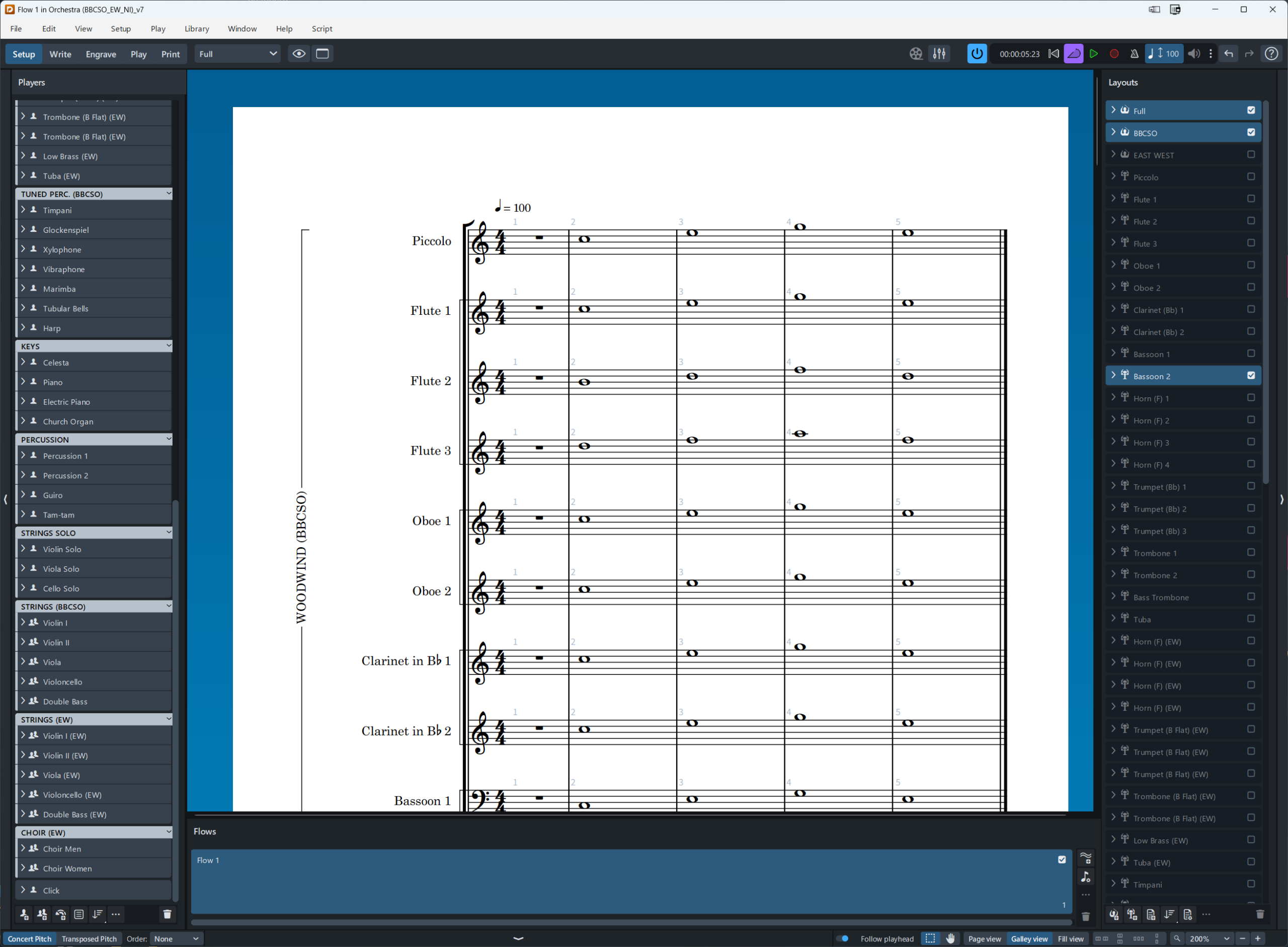
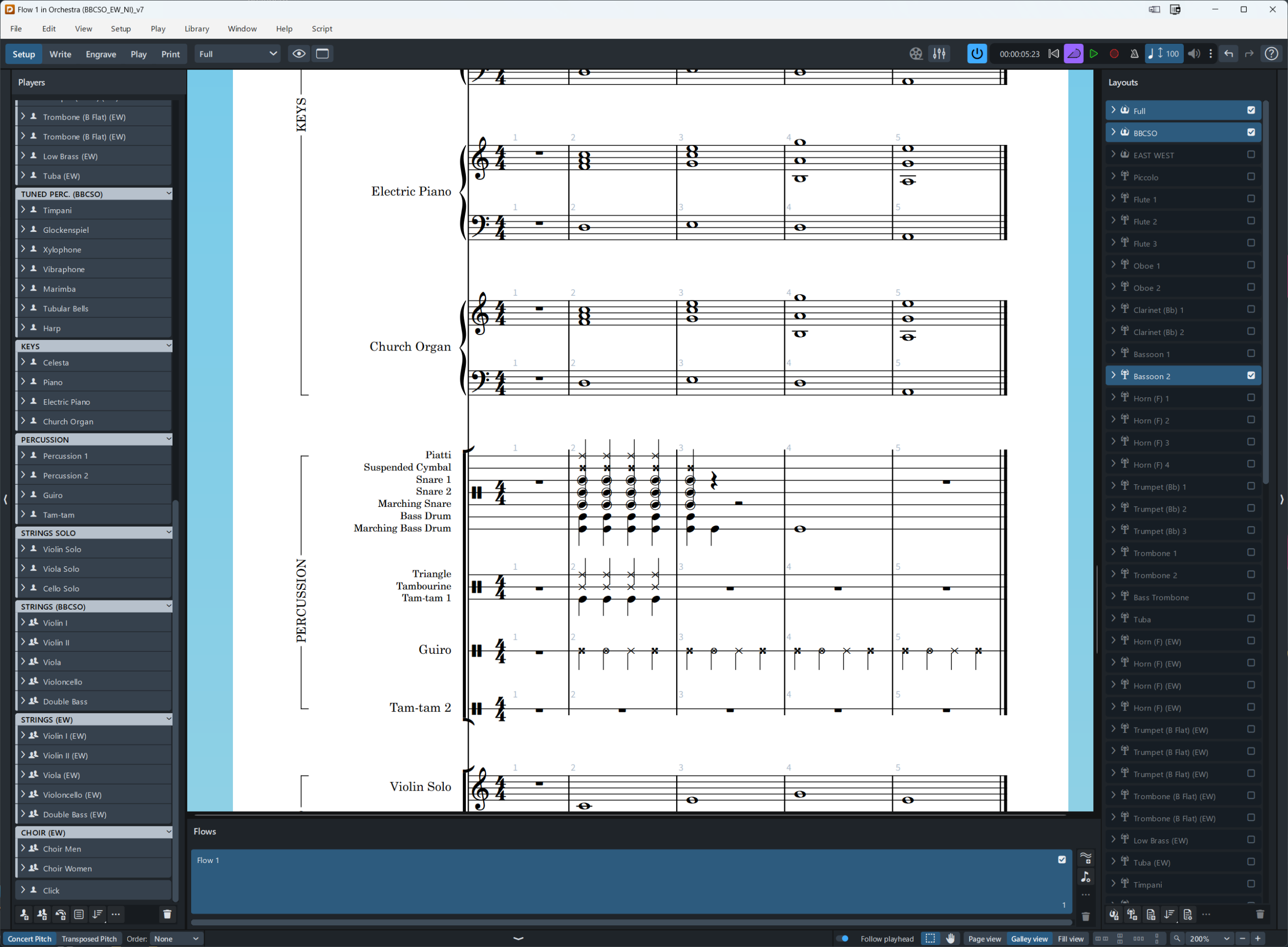
Players and Instruments in the Dorico template. Note the full, BBCSO, and East West layouts.
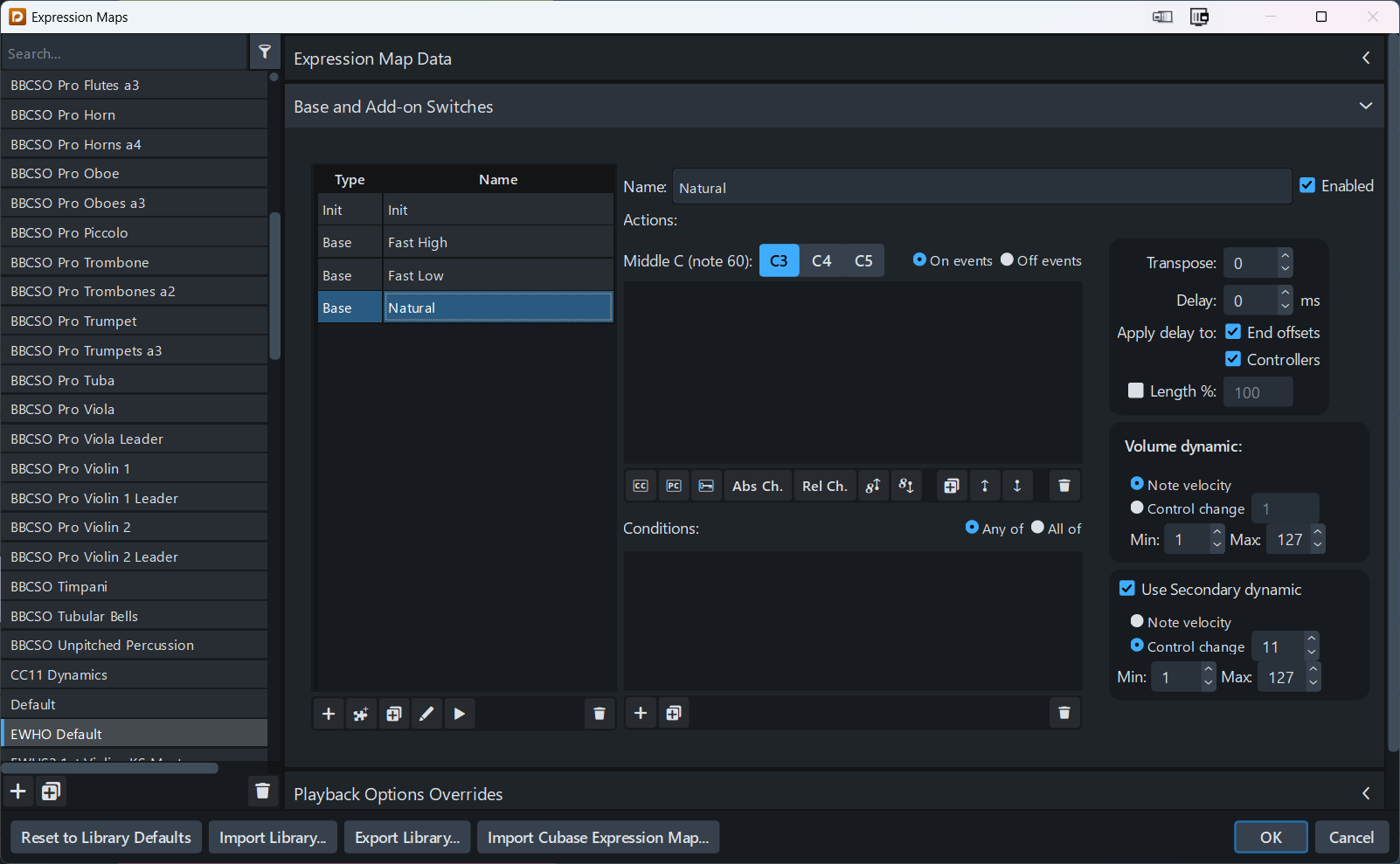
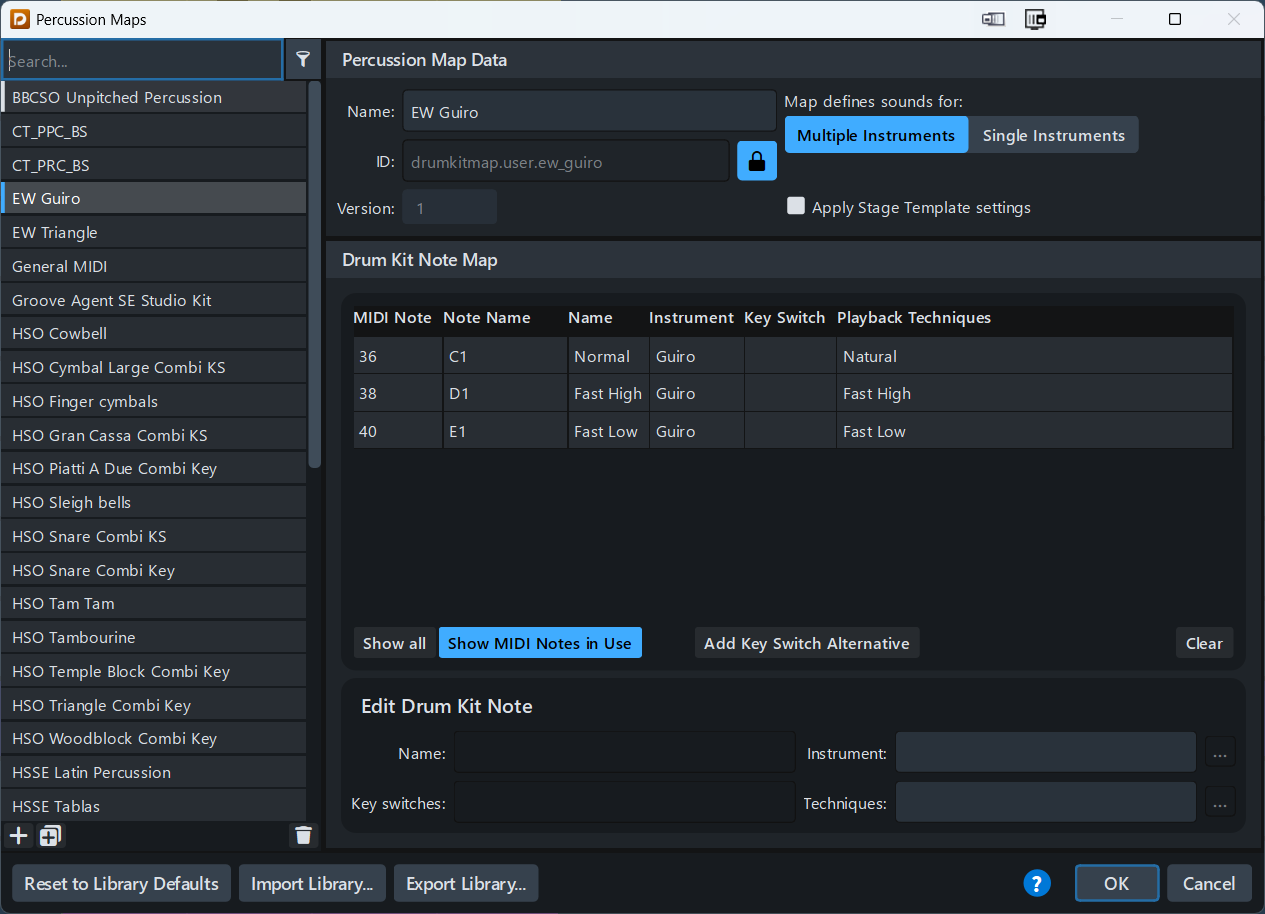
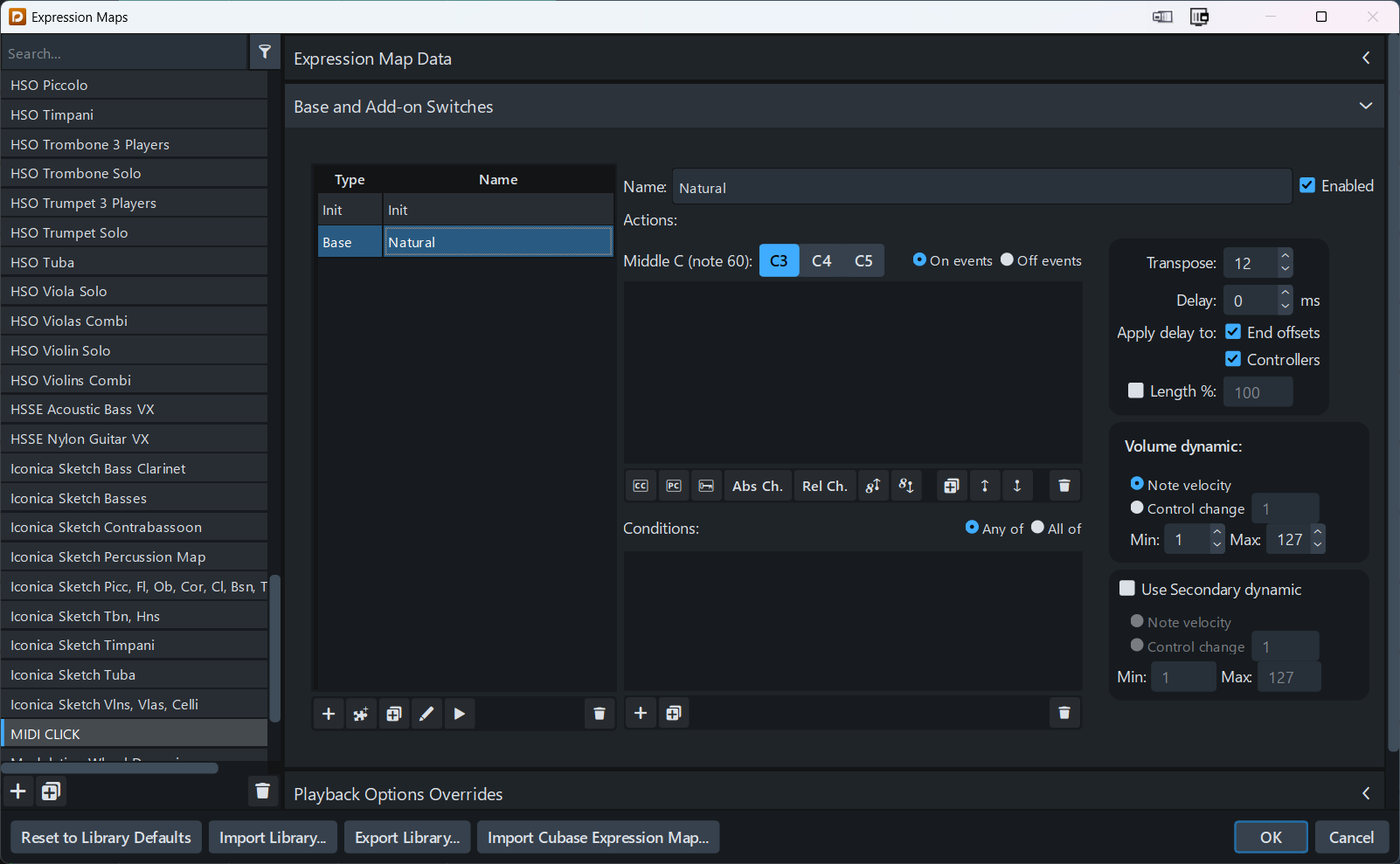
The East West Hollywood Orchestra (EWHO) default expression map, Percussion Map for the Guiro, and Expression map for the Guiro.
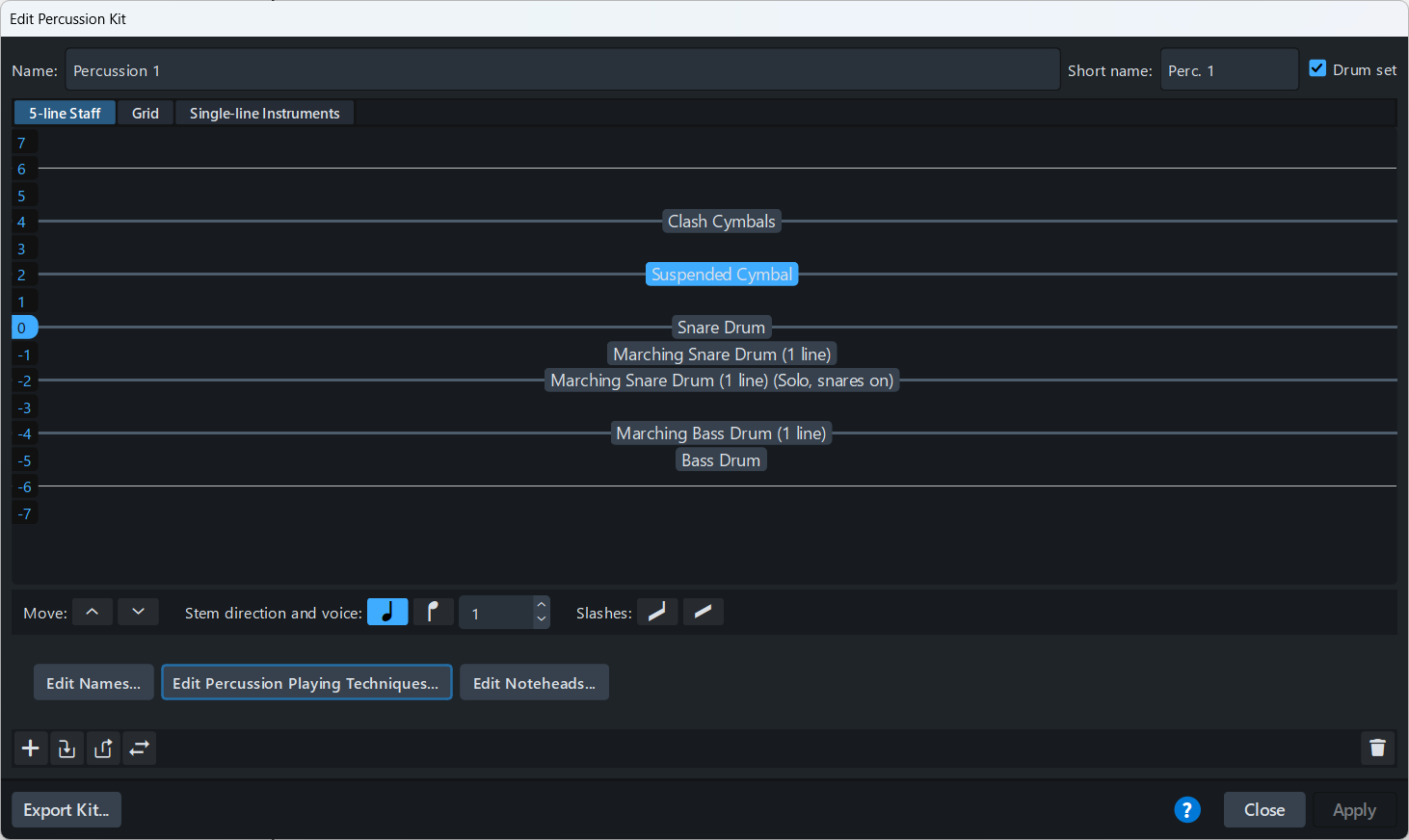
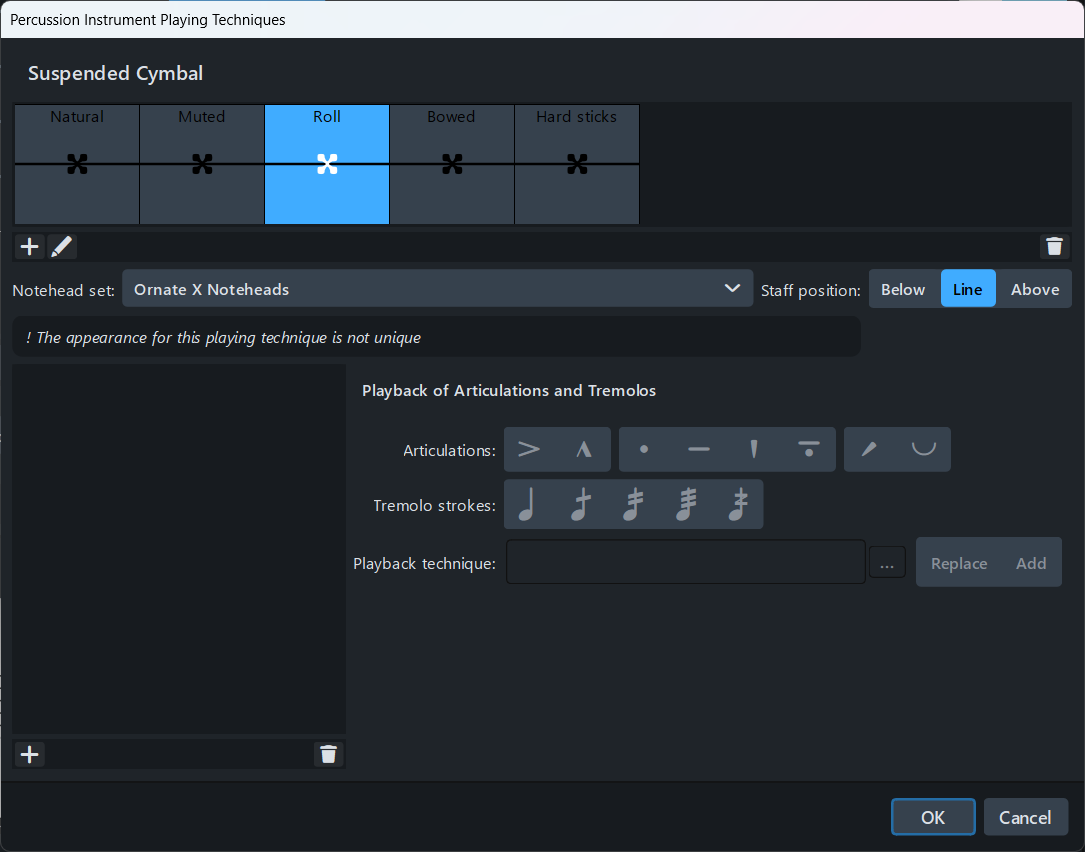
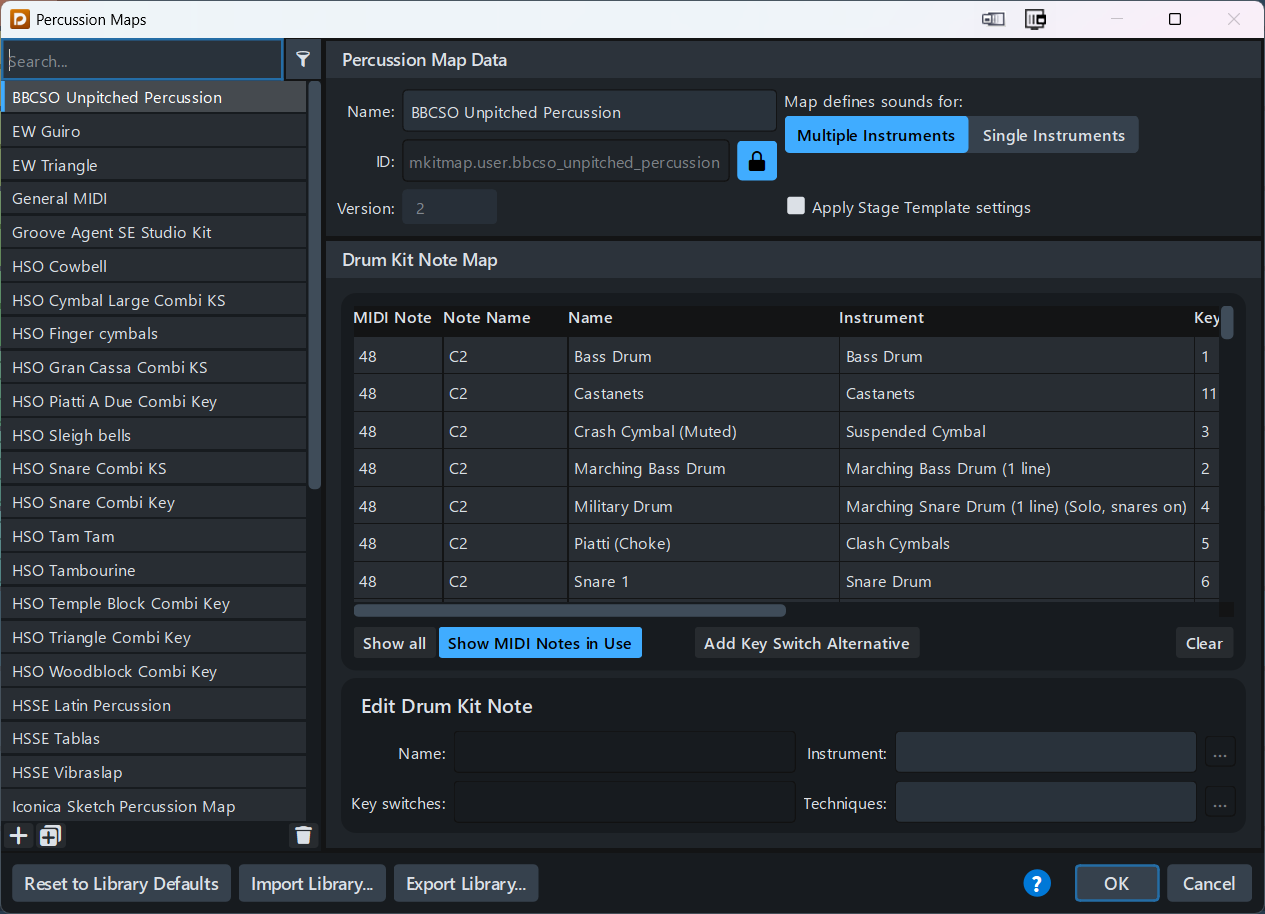
The Percussion Kit, Percussion Instrument Playing Techniques, and the BBCSO Percussion Map for the Percussion 1 Player.
| (4) Setup Cubase |
In Cubase I created a MIDI track for each Player in Dorico. Each MIDI track is routed to an Instrument Track that has loaded the Vienna Ensemble Pro plugin. This plugin has access to 16 MIDI ports corresponding to 32 audio outputs, which are exposed from VEP to Cubase.
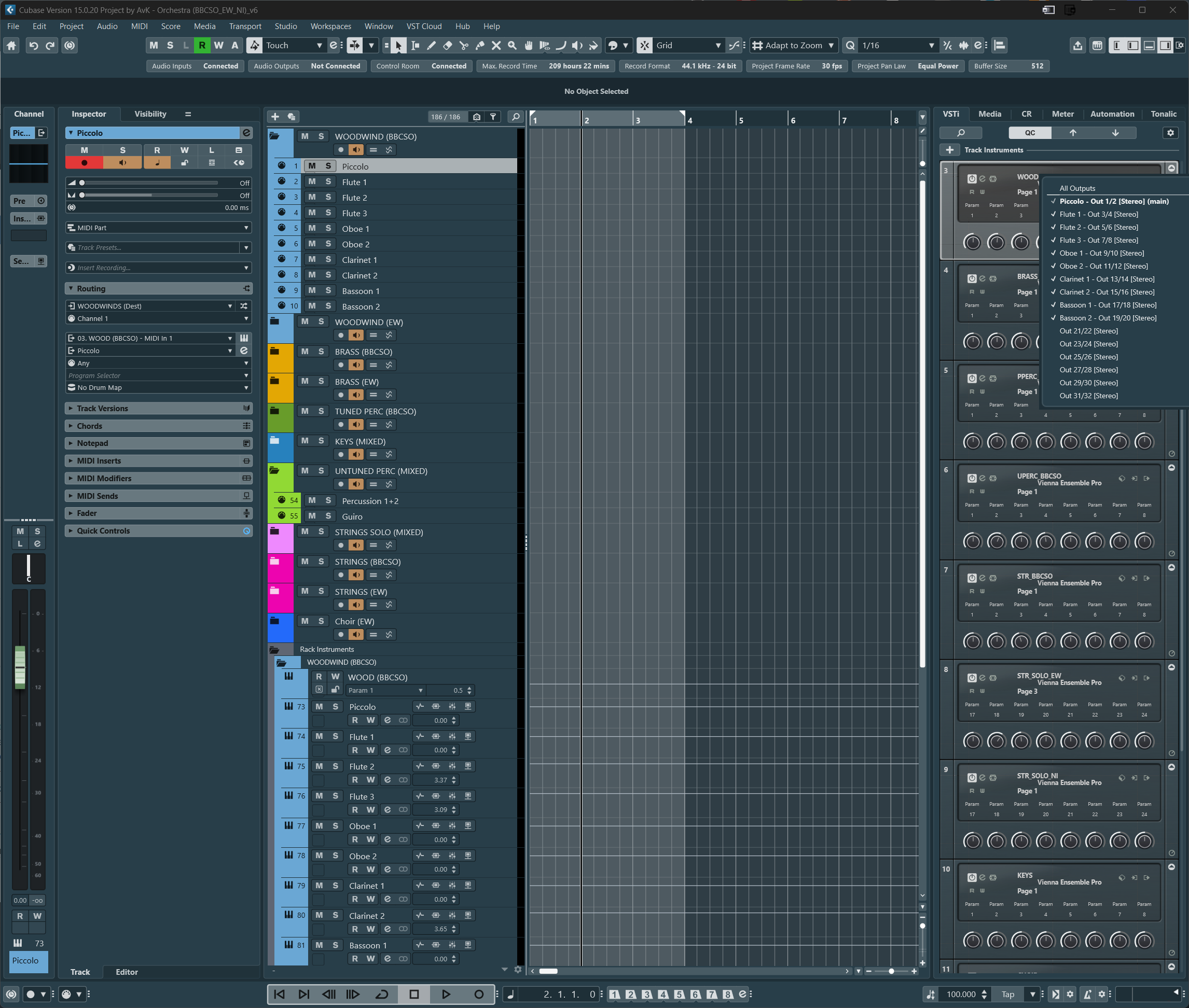 Cubase showing the different instrument sections. In blue (top) the woodwind section with MIDI tracks for the BBCSO instruments (e.g., piccolo, flute, oboe, etc). Each of these individual MIDI tracks is routed to the corresponding Instrument track (at the bottom in the Rack Instruments section). These Instrument Tracks hold the VEP plugin to pass MIDI to VEP and return audio from VEP to Cubase. The top-right corner shows the (activated) MIDI ports for one of the VEP plugins.
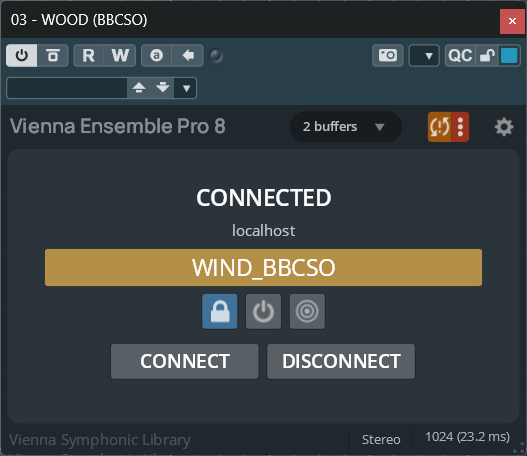
VEP plugin for the BBCSO woodwind instruments.
Setup Cubase project
To setup your Cubase project, follow the next steps:
- Add Rack Instrument –> select the Vienna Ensemble Pro 8 plugin and create MIDI track
- Connect VEP Rack Instrument to the corresponding Instance in VEP (e.g., WIND_BBCSO).
- In the VEP Rack Instrument, active all outputs (i.e., OUT1/OUT2) that are used in the corresponding Instance in VEP (each output corresponds to a specific VEP plugin (i.e., instrument, e.g., BBCSO/Flute 1). For each activated output an instrument track will automatically be created in the Rack Instruments folder.
- Duplicate the MIDI track to create a single MIDI track for each Instrument (activated output).
- Rename each MIDI track and each activated output such that these corresponds to the names of the instruments in the VEP Instance (e.g., Piccolo, Flute 1, Oboe, etc).
- Connect each MIDI track to the corresponding Output (Instrument track)
- Set the Input Routing: select the virtual MIDI input port as was created in Bome (e.g., ‘WOODWINDS (Dest)’). This should correspond to the MIDI port (i.e., ‘WOODWINDS (Src)’) for the corresponding player/instrument in Dorico.
- Select the input channel (corresponding to the MIDI channel set in Dorico for that player/instrument)
- Set the Output Routing: select the corresponding rack instrument/Output (e.g., WOODWINDS – MIDI In 1 ) and Return Channel (e.g., Piccolo). Set Output Group to ‘Any’.
- To get audio from instruments in VEP, make sure to enable ‘Record Enable’ and/or ‘Monitor’ on each MIDI track that receives input from Dorico.
Click track
The Audio and MIDI click tracks were setup in a different way and for a different purpose. I first rendered the Cubase metronome as MIDI and Audio (tempo=100bpm) using Project –> Signature Track –> Rendering MIDI/Audio Click between locators. The resulting Instrument Track is connected to a Halion Sonic GM Drum kit to have multiple sounds for the click available (although I use E3; woodblock). I added a second Click track with a pattern of half, quarter, eight, and sixteenth notes (not shown in the image below). This corresponds to the pattern in the Dorico project. Next, copied the Instrument Track and removed the MIDI to get an empty track that I use to record the incoming Click track from Dorico (i.e., The MIDI Click q=100 (REC) is connected to MIDI input ‘Click (Dest)’.
The reason for doing this, is to allow the determine the time deviation between Cubase and Dorico click in order to optimize the ‘Offset’ in the TXLTimecode plugin in Dorico. See below for more information about the synchronization.
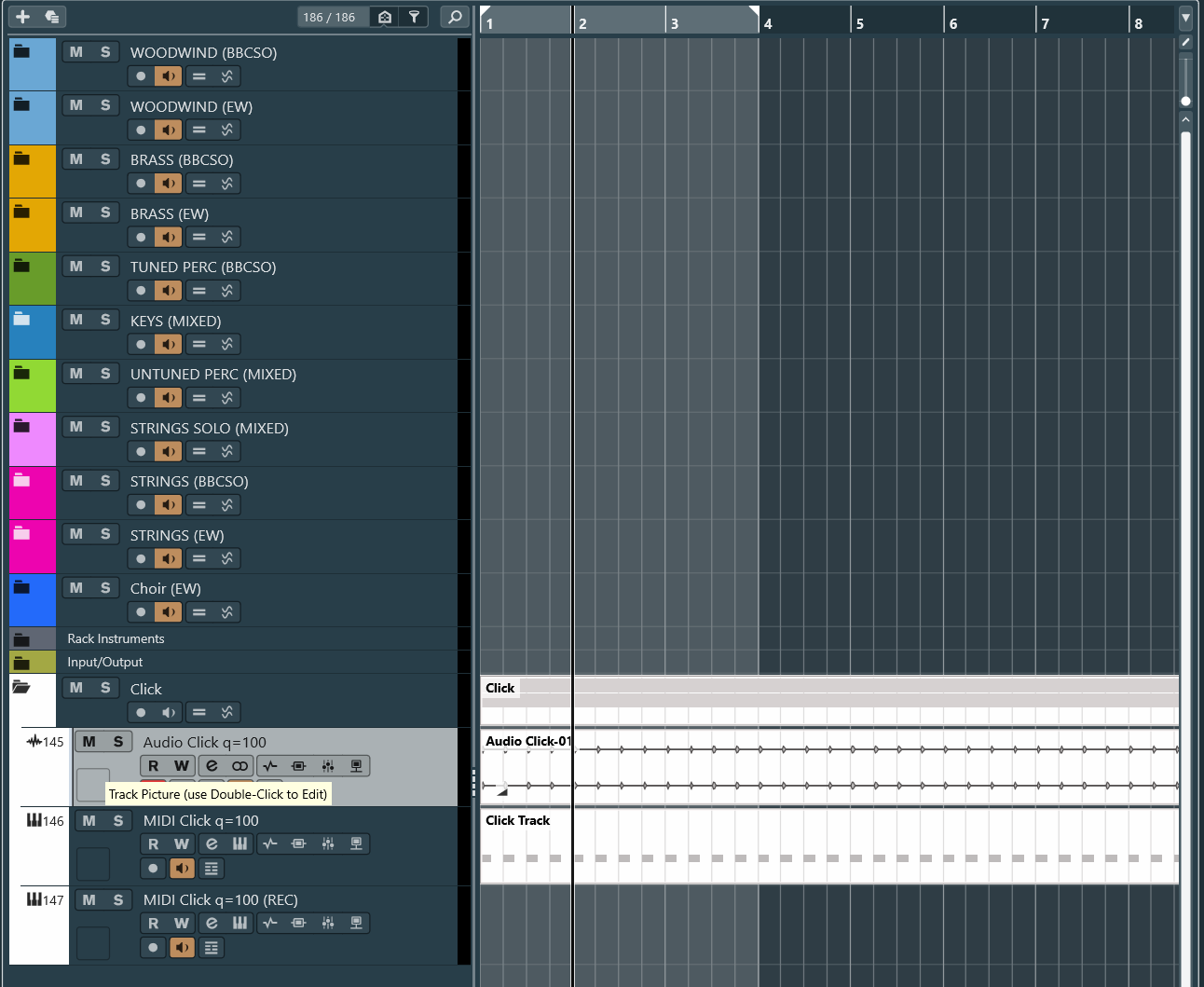
Rack Instrument (vs Track Instruments) and Rendering
In the Cubase setup, I used Rack Instruments hosting the VEP plugin to connect to the VEP server. These Rack Instrument tracks cannot record MIDI (i.e., they do not have a record enable option), nor can MIDI data be added to them directly. Instead, they are always driven by standard MIDI tracks. Consequently, all MIDI data resides on the associated MIDI tracks, either recorded directly from Dorico or entered manually. For each Rack Instrument, multiple audio outputs from VEP are enabled.
When rendering a MIDI track to audio, Cubase renders all active outputs of the corresponding Rack Instrument. For example, the Rack Instrument “STRINGS (BBCSO)” includes separate outputs for Violin I/II, Viola, Cello, and Double Bass. If the Violin MIDI track is rendered, Cubase still generates audio tracks for all STRINGS outputs. However, only the Violin output will contain audio; the remaining tracks will be silent.
Rendering audio and Mixdown
When rendering a MIDI track corresponding to a BBCSO instrument, the resulting audio sounded distorted. I guess, in general, this could have to do with the following settings:
- Buffer size of the audio card (X32) Lower buffer size resulted in more distortion.
- In the Vienna Ensemble Pro Plug-in, there is the find the Latency settings. This value ONLY affects the latency added over the network when you are playing live. See [here].
- Default thread count per instance in VEP preferences (I have currently set this to 4).
- Cubase ASIO Guard. The manual, which seems a bit outdated, notices the following:
- There was quite some change to the CUBASE threading model since Cubase 7. This causes issues with a variety of plugins. Audio Input behaves very badly due to this change. In Cubase 8 and higher, you should deactivate ASIO GUARD 2 manually: Studio > VST Plug-in Manager > VST Instruments > Vienna Ensemble Pro > Click “i” for Plug-in information > Click to set ASIO Guard to Inactive. Please perform this operation on ALL VEPro Instrument and Fx plugins. Audio Input plugins will work properly thereafter.
- However, for VST instruments, there is no longer plugin information available in Cubase 15 and, therefore, the ASIO guard cannot be disabled for Vienna Ensemble Pro. However, in the VST Effects list I could disable the ASIO guard for the ‘Vienna Ensemble Pro Audio Input’ plugin. This plugin is also hidden, and not clear what it is supposed to do. Deactivating the ASIO Guard in Studio > Studio setup also did not help.
- Buffer settings of individual VSTi’s.
- It turned out that the Preoload Size and Stream Buffer Size were set to a too low value in the settings of the BBCSO instruments. I did reset these values to their defaults i.e., 12288 and 65536 respectively.
MMCSS error
- Due to the large number of MIDI ports, Cubase gave the error “Error message on Windows: MMCSS priority cannot be set!”. More information about this error is found on the Steinberg website.
- I tried to resolve this problem by disabling all ‘Src’ Virtual MIDI ports in Studio –> Studio Setup since these are only used by Dorico. However, this did not resolve the problem.
- On the Steinberg website there is a tool available to increase the number of MMCSS threads, which I used to set it to 64 instead of 32 (Windows 11 default). This resolved the problem. However, keep in mind that future Windows updates may reset the number of threads to 32, and you may have to increase the number again.
- I did not try, but reducing the number of MIDI ports in the Preferences of VEP might also solve this problem.
| (5) Setup Dorico and Cubase Synchronization |
In this setup with VEP, Dorico, and Cubase, I can compose the orchestral parts in Dorico and add other instruments or audio tracks in Cubase. Since audio is send from VEP to Cubase, I can mix everything in Cubase and can also decide if I want to have MIDI CC automation in Dorico (eg CC1 (dynamics) and CC11 (expression)) or in Cubase. Not sure yet what I prefer.
This requires to synchronize Dorico and Cubase for which I used the TXL Timecode plugin and LoopMidi. I was already using LoopMidi for synchronization. However, because LoopMidi and Bome Network sometimes seem to conflict, I also configured TIMECODE (Src) –> TIMECODE (Dst) to have an alternative.
The TXL timecode plugin runs in Dorico and connects to Cubase using MIDI timecode (MTC) over a virtual MIDI port created by LoopMIDI. The Click track in Dorico and Cubase that I described above can we used to tune the time offset in the TXL plugin. I have described synchronization of Dorico and Cubase in more detail [here].
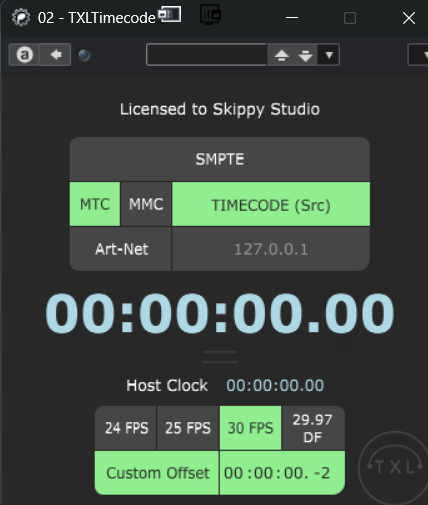
Current settings of the TXL timecode plugin
| The workflow: A different perspective |
Now that we have described the Dorico–Cubase–VEP workflow and its configuration, we can take a final look at it from a different perspective using the two figures below.
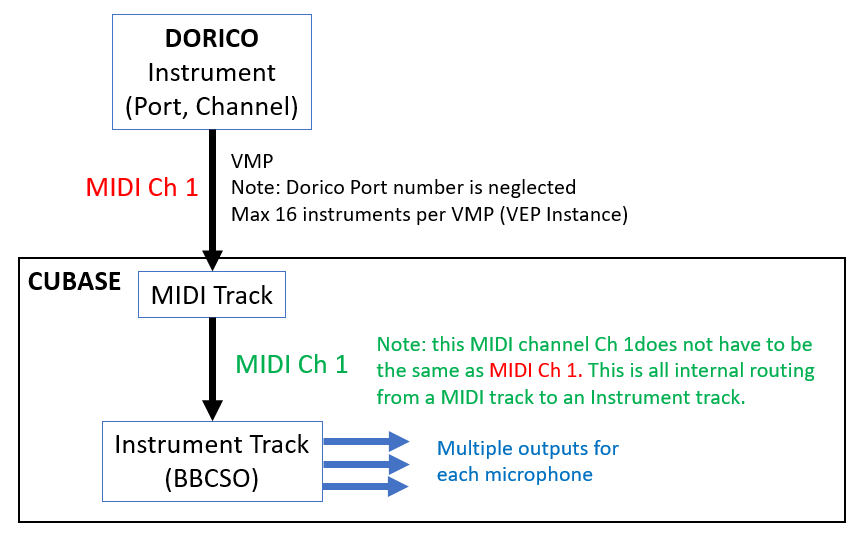
Dorico and Cubase without VEP. Each instrument (Player) in Dorico is routed to a virtual MIDI port (VMP) created in Bome (e.g., “Strings (Src)”). Although the Dorico Endpoint Configuration allows both a MIDI port and MIDI channel to be specified, only the MIDI channel is transmitted together with the MIDI data; the MIDI port setting is ignored when sending data to an external MIDI device. The transmitted MIDI data is received by a corresponding MIDI track in Cubase, which forwards it to a virtual instrument via an internal MIDI channel. This channel does not need to match the MIDI channel assigned in Dorico and may even be configured as ‘Any’. Consequently, all MIDI data originating from Dorico is routed to the target virtual instrument (e.g., the Violin instrument in BBC Symphony Orchestra), which can in turn be configured with multiple audio outputs corresponding to different microphone positions. In this configuration, a single virtual MIDI port can carry a maximum of 16 MIDI channels. Because each MIDI track is associated with a single virtual instrument, one virtual MIDI port can therefore address up to 16 different virtual instruments.
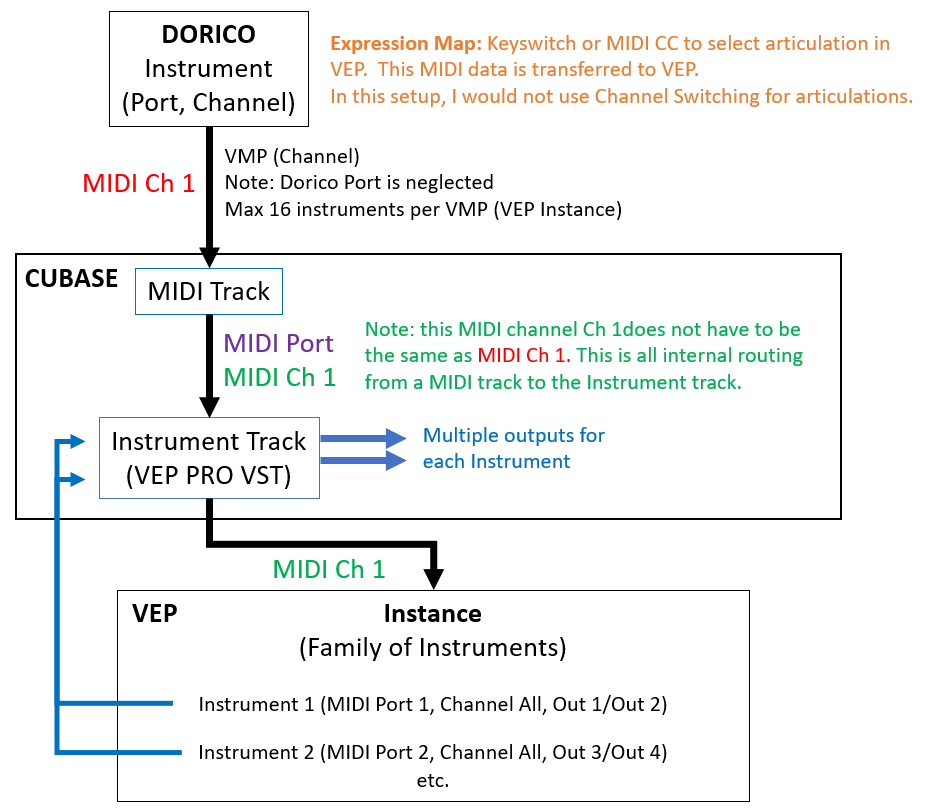
Dorico and Cubase with VEP. In this configuration, the BBCSO virtual instrument is replaced by the VEP VST plugin, which forwards all MIDI data from Cubase to a specific VEP Instance (e.g., an instance containing the string instruments). Within each VEP Instance, multiple virtual instruments can be loaded, such as BBCSO Violin and BBCSO Viola. Each instrument in VEP is assigned a MIDI port, MIDI channel, and audio output. Through the VEP plugin, these MIDI ports and audio outputs are exposed to Cubase. As a result, a Cubase MIDI track can route incoming MIDI data to a specific instrument in VEP by selecting the appropriate VEP MIDI port. In the current setup, all VEP instruments are configured to receive on MIDI channel ‘Any’, allowing them to accept MIDI data regardless of the MIDI channel transmitted by the Cubase MIDI track. Consequently, the internal MIDI channel setting in Cubase is largely irrelevant, while the MIDI port determines the target instrument within VEP. Articulation changes triggered in Dorico, whether via keyswitches or MIDI CC messages, are transmitted through Cubase and ultimately received by the corresponding virtual instrument in VEP. Although articulations could, in principle, be selected by switching MIDI channels, this approach is impractical. It would limit the number of available articulations to the 16 MIDI channels supported by a single MIDI port and would require all articulations of a given instrument to be hosted simultaneously within the same VEP Instance.
| Bome network vs LoopMidi |
The conceptual difference between Bome Network and LoopMidi is that loopMIDI creats a single virtual cable that can be used to send and read MIDI. In contrast in Bome network we must define the source and destination of the cable.
Thus, in loopMIDI we have one port (=shared pipe) that behaves like a loopback cable, i.e., one application (e.g. Dorico) writes to it and another (e.g. Cubase) reads from it. Internally, loopMIDI exposes the same port as an output to the sender and an input to the receiver. Therefore, it feels like one port, but technically it’s doing the pairing for you behind the scenes. That’s why it’s simple.
In Bome, the ports are directional. It treats MIDI ports as explicit directional endpoints, not shared pipes. So instead of one “loopback” port, you typically create one virtual cable for Dorico to Cubase and another cable for Cubase to Dorico (which we do not have in our setup). For each cable we have a source and destination virtual MIDI port. This is done because Bome is designed as a router/translator, not just a loopback tool. It assumes, for example, that in some cases we may want to filter, remap, or transform the MIDI messages (with Bome Translator).
I tried to use loopMIDI instead of Bome Network but this failed because I could not create sufficient MIDI ports.
| Troubleshooting |
- I start in this order: Start VEP, Start Dorico, Start Cubase.
- Make sure to disable all Bome Network virtual MIDI ports in Dorico Preferences –> Play
- Make sure Bome Network is started
- Make sure that all VEP plugins in Cubase are connected.
| Skippy Studio Toolkit |